

A successful Hybrid Configuration Wizard run is a starting point, not proof that every mailbox is ready to move. A migration can still fail at the recipient, endpoint, authentication, data-transfer, or completion stage. Treating every failure as a firewall problem wastes time—and changing several settings at once makes the original cause harder to prove.
Part 3 of the Solution Savy Exchange series is a diagnostic runbook for moving existing on-premises Exchange mailboxes to Exchange Online in the same hybrid organisation. It is not a tenant-to-tenant guide. The checks below are a recommended troubleshooting sequence, not a claim that a particular customer environment or incident has been tested.
Before you run anything: separate the two shells
Use two clearly labelled PowerShell windows: Exchange Online PowerShell for cloud migration objects, and the on-premises Exchange Management Shell for your local servers and source mailboxes. Running a familiar cmdlet in the wrong session can return the wrong recipient—or no object at all. Use an account with the required Exchange roles; a permissions error is not evidence that an object does not exist.
In the cloud window, connect using the ExchangeOnlineManagement module. Install or update that module through your approved administration process if it is not already available. Replace the example identities and endpoint names with real values. The diagnostic commands in this article read configuration or perform connectivity tests; they do not start, complete, remove, or repair a move.
Check the support status of your source environment before planning the migration. Exchange Server 2016 and 2019 reached end of support on October 14, 2025; their names appearing in a cmdlet's applicability list does not mean they are supported today. Confirm the current Exchange Server Subscription Edition servicing requirements with Microsoft.
# Exchange Online PowerShell
Connect-ExchangeOnline -UserPrincipalName admin@contoso.com
Record the mailbox, batch name, endpoint, topology (Classic or Modern Hybrid), failure time, and exact error before making a change. Keep reports in an access-controlled location: they can contain names, email addresses, server details, and mailbox metadata. Redact them before sharing publicly.
1. Recipient identity: the mailbox is not the object you expected
A remote move depends on a consistent source mailbox and synchronised target recipient. Common pain points include stale directory synchronisation, an unexpected recipient type, conflicting addresses, or an already provisioned cloud mailbox. Compare the source mailbox GUID and recipient identity rather than relying on the display name.
# On-premises Exchange Management Shell
Get-Mailbox -Identity 'user@contoso.com' |
  Format-List DisplayName,RecipientTypeDetails,PrimarySmtpAddress,ExchangeGuid,ArchiveGuid,EmailAddresses

# Exchange Online PowerShell: inspect the synchronised recipient
Get-Recipient -Identity 'user@contoso.com' |
  Format-List Name,RecipientTypeDetails,PrimarySmtpAddress,EmailAddresses

# Before an onboarding move, the target commonly appears as a MailUser
Get-MailUser -Identity 'user@contoso.com' |
  Format-List PrimarySmtpAddress,ExternalEmailAddress,ExchangeGuid,ArchiveGuid
Confirm that you are inspecting the intended object in both environments. For an onboarding remote move, investigate an unexpected target mailbox or missing mail user before continuing. Where both sides expose ExchangeGuid, compare it with the source mailbox. An archive requires its own checks; do not assume the primary mailbox GUID proves the archive is ready.
Do not paste a Set-MailUser or Set-RemoteMailbox command into production just to make a GUID match. First establish the authoritative object, the move direction, and whether a cloud mailbox already contains data. Recipient repair is a separate change-controlled task, not a diagnostic shortcut.
2. Endpoint failures: check the route actually used by the move
Remote moves use the Mailbox Replication Service proxy (MRS Proxy). In Classic Hybrid, the relevant externally published EWS path, certificate, authentication, and network access must work. Modern Hybrid routes supported move traffic through the Hybrid Agent. Testing a public EWS URL in that topology may test a path the migration is not using.
# On-premises Exchange Management Shell
Get-WebServicesVirtualDirectory |
  Format-List Identity,InternalUrl,ExternalUrl,MRSProxyEnabled

# Exchange Online PowerShell
Get-MigrationEndpoint |
  Format-List Identity,EndpointType,RemoteServer

# Test the existing endpoint used by your batch
Test-MigrationServerAvailability -Endpoint 'Hybrid Migration Endpoint'
Look for MRSProxyEnabled on the Exchange servers that actually handle migration traffic. In the cloud, confirm that the endpoint is the one your batch uses—not an obsolete endpoint from an earlier HCW run. For Modern Hybrid, preserve the agent-based endpoint created by HCW; do not replace it with a public hostname merely because that name is easier to recognise.
A failed availability test narrows the investigation to endpoint connectivity or configuration. Read the returned error: name resolution, TLS trust, authentication, and a disabled MRS Proxy are different faults. A successful test is useful evidence, but it does not validate every mailbox, every backend server, or every later completion step.
For Classic Hybrid, inspect the published certificate and reverse-proxy path without disabling certificate validation. For Modern Hybrid, check the agent service and its required outbound connectivity using Microsoft's Hybrid Agent documentation. Avoid opening inbound ports as a generic fix for an agent-based move.
3. Stalled batches: the summary is not the diagnosis
A batch can contain healthy, synchronising, and failed mailboxes at the same time. Start with the batch overview, then follow the individual mailbox. A Synced state is not the same as Completed: a batch configured for manual completion can wait intentionally after initial synchronisation. Check the planned completion window before treating that state as an outage.
# Exchange Online PowerShell
Get-MigrationBatch -Identity 'Hybrid-Pilot-01' |
  Format-List Identity,Status,TotalCount,SyncedCount,FinalizedCount,FailedCount

Get-MigrationUser -BatchId 'Hybrid-Pilot-01' |
  Format-Table Identity,Status -AutoSize

Get-MigrationUserStatistics -Identity 'user@contoso.com' -IncludeReport |
  Format-List Identity,Status,Error,Report
Read the individual Error and Report, not just the FailedCount. The useful clue is usually the stage and repeated exception: an authentication failure is not a throughput problem, and a data-integrity warning is not proof that the endpoint is down. Preserve the original report before retrying.
4. Slow or failed moves: inspect the move report, not a stopwatch
For a hybrid remote move represented by a move-request object, the move report provides a second view of progress and failures. Migration-user objects and move-request objects are related but not interchangeable; use this check where the move request exists and your role can access it.
# Exchange Online PowerShell: locate the remote move request
Get-MoveRequest -Identity 'user@contoso.com' |
  Format-List Identity,Status,BatchName

Get-MoveRequestStatistics -Identity 'user@contoso.com' -IncludeReport |
  Format-List DisplayName,Status,StatusDetail,PercentComplete,TotalMailboxSize,BytesTransferred,Message,Report
A single percentage is not a reliable estimate of time remaining. Read StatusDetail and report history, and compare observations over time. Source-server health, storage latency, network conditions, mailbox characteristics, service workload management, and agent availability can all affect progress. There is no universal throughput number that every hybrid migration should reach.
Some failure entries in a move report are transient and may be followed by a successful retry. Queued or InProgress does not by itself mean the move has failed. Correlate the current state with the report chronology before acting on an older exception.
If no move request is returned, confirm the shell, identity, permissions, and migration workflow before concluding that the migration vanished. For a batch-managed migration, start with Get-MigrationUserStatistics and the batch report rather than creating a second move request.
For skipped or problematic items, review the reported items and Microsoft's current data-consistency guidance. Do not increase loss tolerances, approve skipped items, or force completion without understanding what data could be missing and obtaining the owner's approval. Likewise, removing and recreating a batch is not a first-line diagnostic step.
5. Free/busy failures: a separate signal, not a mailbox-move test
Cross-premises free/busy and OAuth issues can appear during the same project, but they are not the same as MRS Proxy failures. A successful mailbox transfer does not prove calendar coexistence works, and an OAuth error does not automatically explain a failed move.
# On-premises Exchange Management Shell
# Use a mailbox that is still hosted on-premises
Test-OAuthConnectivity -Service EWS `
  -TargetUri 'https://outlook.office365.com/ews/exchange.asmx' `
  -Mailbox 'user@contoso.com' -Verbose

# Exchange Online PowerShell: inspect sharing configuration
Get-OrganizationRelationship |
  Format-List Name,DomainNames,FreeBusyAccessEnabled,TargetSharingEpr
The OAuth command tests the specified on-premises-to-cloud EWS direction. It is not an end-to-end test of both directions, Teams calendar access, or mailbox migration. Check the opposite direction separately with a real calendar lookup. In Modern Hybrid, an agent-based sharing endpoint can be expected; compare the organisation relationship with the topology configured by HCW.
6. After completion: validate the user experience
A Completed status closes the move operation, not the entire change. Verify the cloud mailbox and the remaining on-premises remote-mailbox object, then test real mail and calendar behaviour. Allow for directory synchronisation and service propagation where applicable; do not immediately repair a transient mismatch by changing both sides.
# Exchange Online PowerShell: after the onboarding move completes
Get-Mailbox -Identity 'user@contoso.com' |
  Format-List RecipientTypeDetails,PrimarySmtpAddress,ExchangeGuid,ArchiveStatus

# On-premises Exchange Management Shell
Get-RemoteMailbox -Identity 'user@contoso.com' |
  Format-List RecipientTypeDetails,RemoteRecipientType,RemoteRoutingAddress,ExchangeGuid
Confirm inbound, outbound, and cross-premises mail with real test messages; investigate failures with message tracing rather than assuming the move changed every connector.
Check Outlook sign-in, Autodiscover behaviour, mobile access, and any archive the user relies on.
Test shared-mailbox access, delegation, and cross-premises free/busy with the people affected by the move.
Validate Teams calendar behaviour where it is required, especially while other mailboxes remain on-premises.
Record the outcome and outstanding issues before closing the change. Retain necessary reports according to your organisation's retention and access rules.
The operating principle: evidence before changes
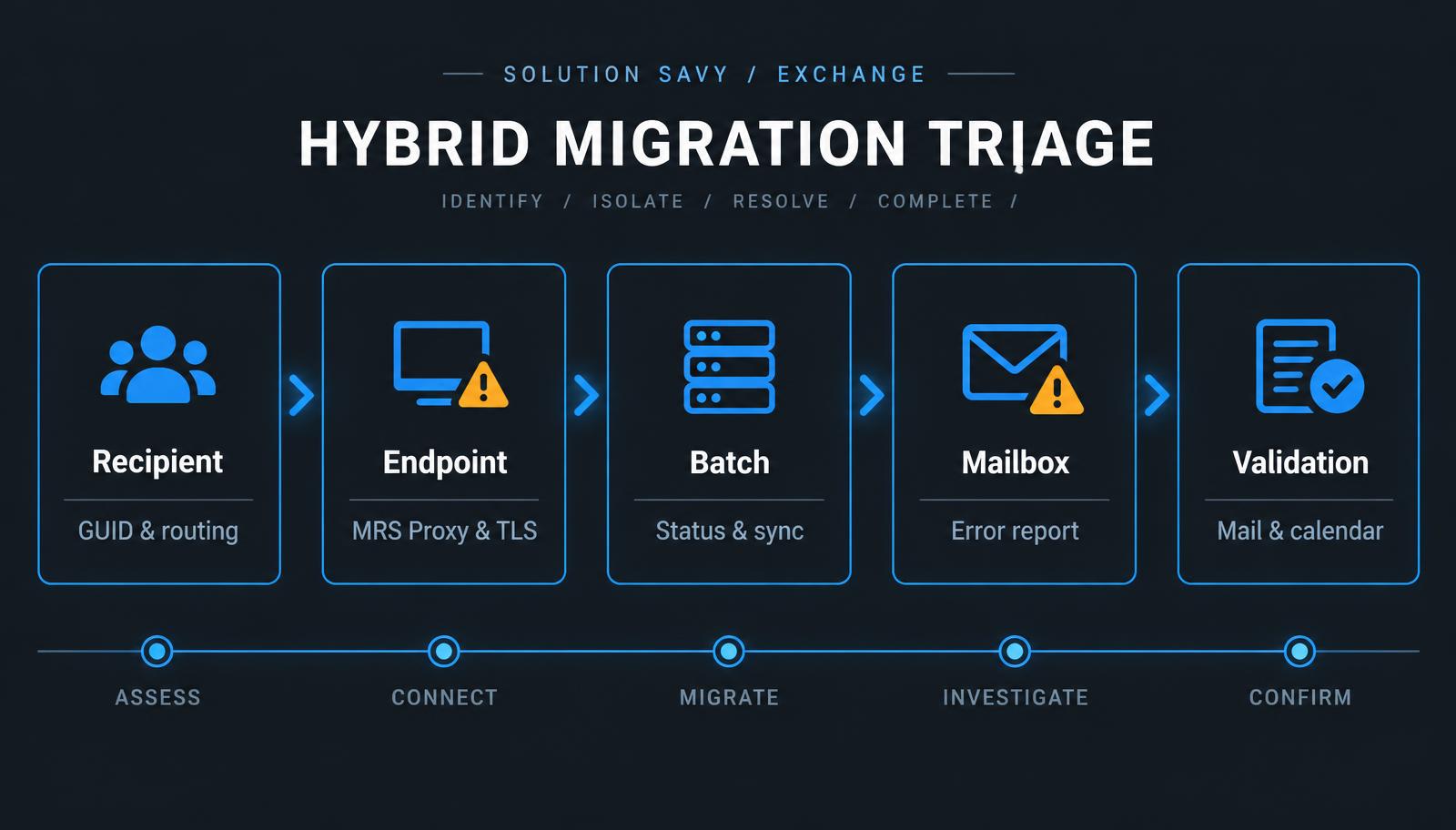
My recommended sequence is recipient identity, actual migration endpoint, batch status, per-mailbox report, and post-move validation. Each step answers a different question. Keep a pilot small enough to investigate, change one proven cause at a time, and repeat the same checks after remediation. That is more useful than a collection of commands run without context.
These examples are documentation-based and must be checked against your Exchange version, topology, permissions, and change policy. They have not been executed against your tenant. Solution Savy can help assess a hybrid migration design and turn the findings into a controlled migration runbook.
Microsoft documentation and command references
Moving mailboxes in hybrid deployments
Enable the MRS Proxy endpoint for remote moves
Microsoft Hybrid Agent: requirements and limitations
Test-MigrationServerAvailability
Get-MigrationUserStatistics and migration reports
Get-MoveRequestStatistics and move reports
Microsoft lifecycle: Exchange Server 2016 and 2019 end of support
Originally published on Solution Savy. Need help with this? Book a consultation.